CCAttendance User Guide
Welcome to CCAttendance! We've created this friendly desktop app for recording and tracking attendance of students in CCAs. It’s built specially for hall attendance managers who want a simpler, faster way to track who’s showing up for which CCAs. If the current system feels messy and tiring to use, CCAttendance is here to make your life easier! CCAttendance is your helpful assistant that makes it easy to organise students and coordinating hall activities all in one place.
Quick start
Ensure you have Java
17or above installed in your Computer.
Mac users: Ensure you have the precise JDK version prescribed here.Download the latest
.jarfile from here.Copy the file to the folder you want to use as the home folder for CCAttendance.
Open a command terminal,
cdinto the folder you put the jar file in, and use thejava -jar CCAttendance.jarcommand to run the application.
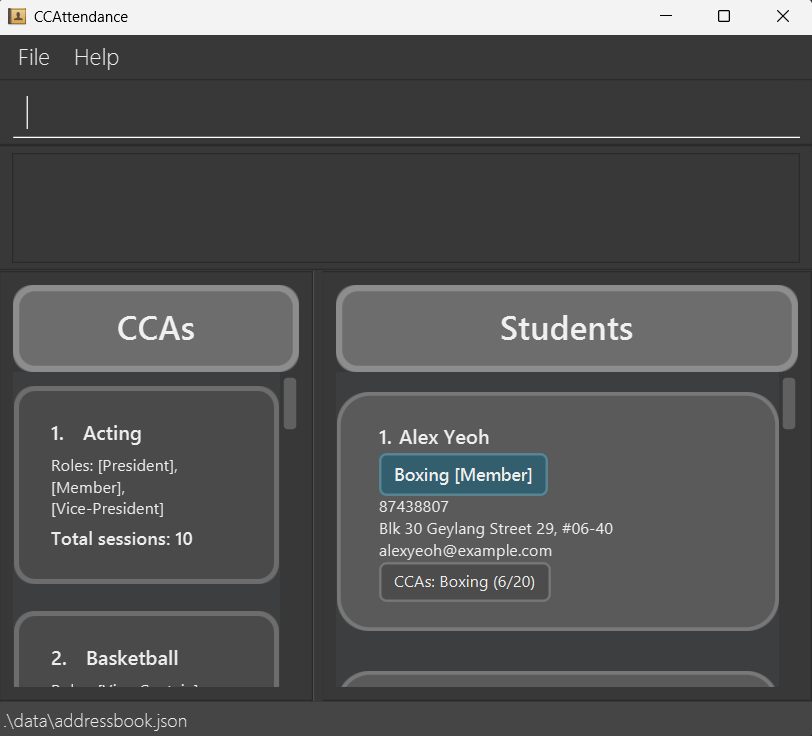
A GUI similar to the below should appear in a few seconds. Note how the app contains some sample data.
Type the command in the command box and press Enter to execute it. e.g. typing
helpand pressing Enter will open the help window.
Some example commands you can try:list: Lists all students.create_s n/John Doe p/98765432 e/johnd@example.com a/John street, block 123, #01-01: Adds a contact namedJohn Doeto the list.delete_s 3: Deletes the 3rd student shown in the current list.clear: Deletes all contacts.exit: Exits the app.
Refer to the Features below for details of each command.
Important Details
Student
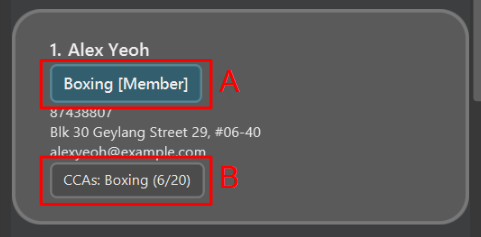
Each student is represented by a student card. Other than the name, phone number, address, and email, the student card also shows their attendance and role in each CCA.
The role is represented by the element labeled
Awhich shows the CCA on the left and the role inside the square brackets. E.g. the student above is aMemberofBoxingCCA.The attendance is represented by the element labeled
Bwhich shows the CCA on the left and the number of sessions attended out of the total sessions in the brackets. E.g. the student above has attended 6 out of 20 sessions inBoxingCCA.
CCA
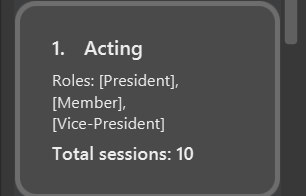
Each CCA is represented by a CCA card. The card shows the name of the CCA, the roles available in the CCA, and the total sessions.
The name of each role are the texts in the square brackets. E.g. the CCA above has 3 roles:
President,Vice-President, andMember.Memberis the default role and will thus appear in every CCA.
Features
Notes about the command format:
Words in
UPPER_CASEare the parameters to be supplied by the user.
e.g. increate_s n/NAME,NAMEis a parameter which can be used ascreate_s n/John Doe.Items in square brackets are optional.
e.gn/NAME [c/CCA_NAME]can be used asn/John Doe c/Basketballor asn/John Doe.Items with ... after them can be used multiple times including zero times. e.g.
[r/ROLE_NAME]...can be used asr/Captain r/Vice-Captainor asr/Captainor as nothing at all.Parameters can be in any order.
e.g. if the command specifiesn/NAME p/PHONE_NUMBER,p/PHONE_NUMBER n/NAMEis also acceptable.Extraneous parameters for commands that do not take in parameters (such as
help,list,exitandclear) will be ignored.
e.g. if the command specifieshelp 123, it will be interpreted ashelp.If you are using a PDF version of this document, be careful when copying and pasting commands that span multiple lines as space characters surrounding line-breaks may be omitted when copied over to the application.
Viewing help : help
Shows a message explaning how to access the help page.

Format: help
Listing all students : list
Shows a list of all students in the student list.
Format: list
Locating students by name: find
Finds students whose names contain any of the given keywords.
Format: find KEYWORD [MORE_KEYWORDS]
- The search is case-insensitive. e.g
hanswill matchHans. - The order of the keywords does not matter. e.g.
Hans Bowill matchBo Hans. - Only the name is searched.
- Only full words will be matched e.g.
Hanwill not matchHans. - Students matching at least one keyword will be returned (i.e.
ORsearch). e.g.Hans Bowill returnHans Gruber,Bo Yang.
Examples:
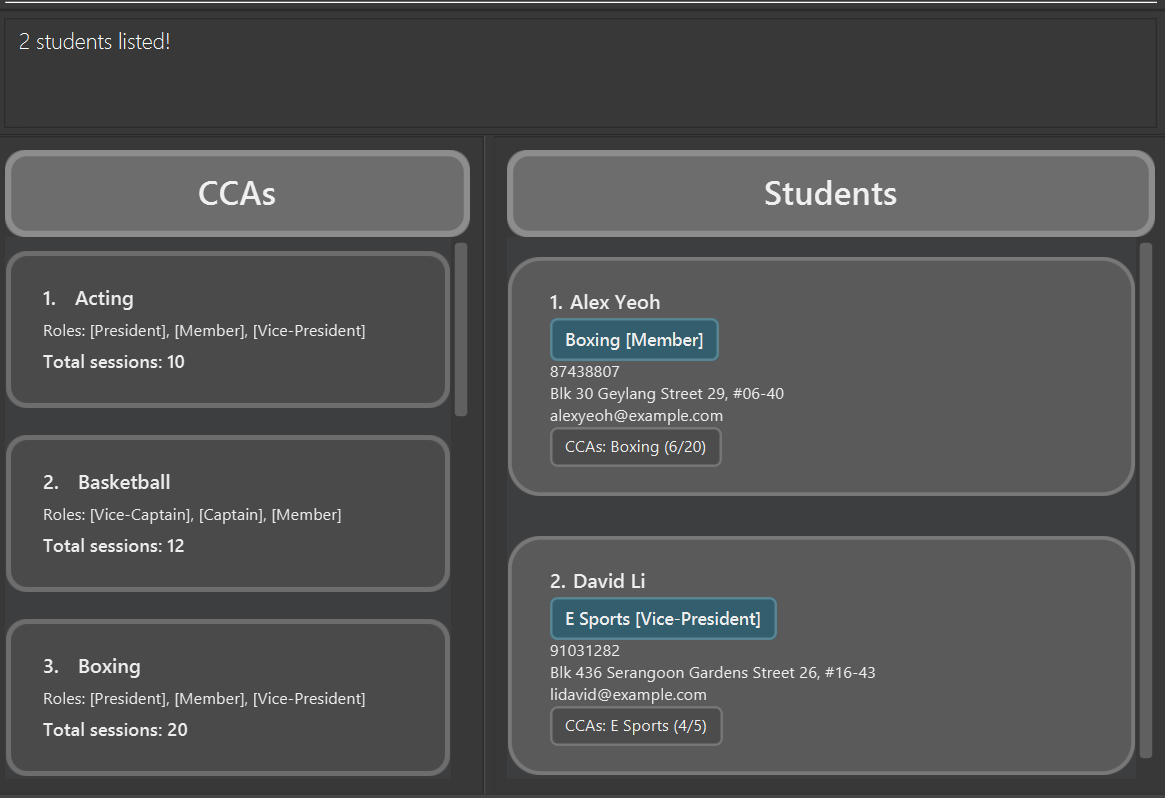
find JohnreturnsjohnandJohn Doefind alex davidreturnsAlex Yeoh,David Li
Creating a student: create_s
Creates and adds a student to the list of students.
Format: create_s n/NAME p/PHONE_NUMBER e/EMAIL a/ADDRESS
- Names should only contain alphabetic characters and a single space between words, it should not be blank and must be at most 100 characters (including spaces). Unfortunately, we do not allow
/in names, making names likeDavid s/o Danielinvalid. - Phone numbers should only contain numbers. It should be at least 3 digits long, and at most 10 digits long.
- Emails should be of the format local-part@domain and must not exceed 150 characters.
- Addresses can take any values, it should not be blank and must be at most 150 characters long (including spaces).
Examples:
create_s n/John Doe p/98765432 e/johnd@example.com a/John street, block 123, #01-01creates a student namedJohn Doe, with phone number98765432, email ofjohnd@example.com, and address ofJohn street, block 123, #01-01.
Creating a CCA: create_c
Creates and adds a CCA to the list of CCAs.
Format: create_c c/CCA_NAME
- Creates and adds a CCA with a name.
- The new CCA will have a default role
Memberand total sessions set to 0 by default. - CCA names must consist of alphanumeric characters, can only include spaces or hyphens between words and must be at most 100 characters long. For example,
R0ck-n-R0llis a valid CCA name, but-Basketball-is not. It is up to the user to make meaningful CCA names.
Caution:
CCA names are case-sensitive. For example, Basketball and basketball are considered different CCA names.
Examples:
create_c c/Basketballcreates a CCA namedBasketball, with a roleMemberand atotal sessionsset to 0.
Editing a student's basic details : edit_s
Edits the name, phone, email, or address of an existing student in the student list.
Format: edit_s INDEX [n/NAME] [p/PHONE] [e/EMAIL] [a/ADDRESS]
- Edits the student at the specified
INDEX. The index refers to the index number shown in the displayed student list. The index must be a positive integer (1, 2, 3, …). - At least one of the optional fields (
n/,p/,e/,a/) must be provided. - Existing values for the specified fields will be overwritten by the new input values.
- The edited student cannot have the same name, phone numer, or email as another student in the student list.
Examples:
edit_s 1 p/91234567 e/johndoe@example.comEdits the phone number and email address of the student at index 1 to be91234567andjohndoe@example.comrespectively. Their name, address, CCAs, and roles remain unchanged.edit_s 3 n/Peter Tan a/Blk 123, Clementi Ave 4, #05-06Edits the name and address of the student at index 3. Their phone, email, CCAs, and roles remain unchanged.
Editing a CCA : edit_c
Edits an existing CCA in the CCA list.
Format: edit_c INDEX [c/CCA_NAME] [r/ROLE_NAME]... [t/TOTAL_SESSIONS]
- The edited CCA cannot have the same name as another CCA in the CCA list.
Caution:
Role names are case-sensitive. For example, Captain and captain are considered different.
- Edits the CCA at the specified
INDEX. The index refers to the index number shown in the displayed CCA list. The index must be a positive integer (1, 2, 3, …). - At least one of the optional fields must be provided.
- Existing values will be updated to the input values.
- The new name must not match any existing CCA names in the CCA list.
- The amount of total sessions must be a non-negative integer.
- Regardless of the input for the role field, a
Memberrole will automatically be created. - Typing
r/without specifying any roles after it remove all the CCA’s roles except forMember. - If an existing student have their role removed from the CCA, the student's role will be set to
Member. - If an existing student's attended sessions is above the new total sessions, the student's attended sessions will be set to the new total sessions.
- CCA names must consist of alphanumeric characters, can only include spaces or hyphens between words and must be at most 100 characters long.
- Role names should be alphanumeric, allowing the use of hyphens, and must be at most 50 characters long (including spaces and hyphens).
Examples:
edit_c 1 c/Volleyball r/Captain r/Vice-Captain t/40Edits the CCA with the first index in the CCA list. Renames it toVolleyball, updates the available roles toCaptain,Vice-CaptainandMember, and updates the total sessions to 40.
Adding a CCA to a student: add_c
Assigns an existing CCA from the CCA list to a specific student. The student will be assigned a default role (e.g., Member) for the added CCA.
Format: add_c INDEX c/CCA_NAME
- Assigns the CCA specified by
CCA_NAMEto the student at the specifiedINDEX. - The index
INDEXrefers to the index number shown in the displayed student list. The index must be a positive integer (1, 2, 3, …). - The
CCA_NAMEprovided must exactly match the name of a CCA already present in the main CCA list (uselistor view the CCA panel to see available CCAs). - The student must not already be assigned to the specified CCA.
Examples:
add_c 2 c/TennisAssigns the existingTennisCCA to the student at index 2 in the current student list. The student gets the default role forTennis.
Adding a role to a student in a CCA: add_r
Adds a role to a student in a CCA.
Format: add_r INDEX c/CCA_NAME r/ROLE_NAME
- Adds a role to the student at the specified
INDEXin the CCA. - The index refers to the index number shown in the displayed student list.
- The index must be a positive integer (1, 2, 3, …).
- The role must exist in the CCA.
- The student must be in the CCA.
- The student must not have an existing role in the CCA (other than
Member).
Tip:
If you want to edit the role of a student in a CCA, you can use remove_r to remove the existing role and then use add_r to add the new role.
Examples:
add_r 2 c/Basketball r/CaptainAdds the roleCaptainto the 2nd student in the student list in the CCABasketball.
Recording attendance : attend
Records the attendance of a student in a CCA.
Format: attend INDEX c/CCA_NAME a/AMOUNT
- Records the attendance of the student at the specified
INDEXin the specified CCA. - The index refers to the index number shown in the displayed student list.
- The index must be a positive integer (1, 2, 3, …)
- The amount of attendance must be a positive integer.
- The resulting total sessions attended by the student must not exceed the total sessions of the CCA.
Examples:
attend 2 c/Basketball a/1Records the attendance of the 2nd student in the student list in the CCABasketballone time (i.e. increase attendance by 1).attend 3 c/Basketball a/2Records the attendance of the 3rd student in the student list in the CCABasketballtwo times (i.e. increase attendance by 2).
Deleting a student : delete_s
Deletes the specified student from the list of students.
Format: delete_s INDEX
- Deletes the student at the specified
INDEX. - The index refers to the index number shown in the displayed student list.
- The index must be a positive integer (1, 2, 3, …).
Examples:
listfollowed bydelete_s 2deletes the 2nd student in the student list.find Betsyfollowed bydelete_s 1deletes the 1st student in the results of thefindcommand.
Deleting a CCA : delete_c
Deletes the specified CCA from the list of CCAs.
Format: delete_c INDEX
- Deletes the CCA at the specified
INDEX. - The index refers to the index number shown in the displayed CCA list.
- The index must be a positive integer (1, 2, 3, …).
- Unlike student list, the CCA list will always show all CCAs.
- Deleting a CCA will also delete the CCA from each student that is in the CCA.
Examples:
delete_c 2deletes the 2nd CCA in the CCA list.
Removing a role from a student in a CCA : remove_r
Removes a role from a student in a CCA.
Format: remove_r INDEX c/CCA_NAME
- Removes the role from the student at the specified
INDEXin the CCA (i.e. turns the student into aMember). - The index refers to the index number shown in the displayed student list.
- The index must be a positive integer (1, 2, 3, …).
- The student must be in the CCA.
- The student must have a role in the CCA.
Examples:
remove_r 2 c/BasketballRemoves the role of the 2nd student in the student list in the CCABasketball.
Removing a CCA from a student : remove_c
Removes a specific CCA assignment (including its associated role and attendance) from a student.
Format: remove_c INDEX c/CCA_NAME
- Removes the CCA specified by
CCA_NAMEfrom the student at the specifiedINDEX. - The index
INDEXrefers to the index number shown in the displayed student list. The index must be a positive integer (1, 2, 3, …). - The student must currently be assigned to the specified
CCA_NAMEfor the removal to be successful.
Examples:
remove_c 1 c/Basketballremoves theBasketballCCA assignment from the student at index 1 in the current student list.
Clearing all entries : clear
Clears all entries in both student and CCA list.
Format: clear
Exiting the program : exit
Exits the program.
Format: exit
Saving the data
CCAttendance data are saved in the hard disk automatically after any command that changes the data. There is no need to save manually.
Editing the data file
CCAttendance data are saved automatically as a JSON file [JAR file location]/data/addressbook.json. Advanced users are welcome to update data directly by editing that data file.
Caution:
If your changes to the data file makes its format invalid, CCAttendance will discard all data and start with an empty data file at the next run. Hence, it is recommended to take a backup of the file before editing it.
Furthermore, certain edits can cause CCAttendance to behave in unexpected ways (e.g., if a value entered is outside the acceptable range). Therefore, edit the data file only if you are confident that you can update it correctly.
FAQ
Q: How do I transfer my data to another Computer?
A: Install the app in the other computer and overwrite the empty data file it creates with the file that contains the data of your previous CCAttendance home folder.
Known issues
- When using multiple screens, if you move the application to a secondary screen, and later switch to using only the primary screen, the GUI will open off-screen. The remedy is to delete the
preferences.jsonfile created by the application before running the application again. - If you minimize the Help Window and then run the
helpcommand (or use theHelpmenu, or the keyboard shortcutF1) again, the original Help Window will remain minimized, and no new Help Window will appear. The remedy is to manually restore the minimized Help Window.
Command summary
| Action | Format, Examples |
|---|---|
| Help | help |
| List | list |
| Find | find KEYWORD [MORE_KEYWORDS]e.g., find James Jake |
| Create Student | create_s n/NAME p/PHONE_NUMBER e/EMAIL a/ADDRESS e.g., create_s n/James Ho p/22224444 e/jamesho@example.com a/123, Clementi Rd, 1234665 |
| Create CCA | create_c c/CCA_NAME e.g., create_c c/Basketball |
| Edit Student | edit_s INDEX [n/NAME] [p/PHONE_NUMBER] [e/EMAIL] [a/ADDRESS]e.g., edit_s 2 n/James Lee e/jameslee@example.com |
| Edit CCA | edit_c INDEX [c/CCA_NAME] [r/ROLE_NAME]... [t/TOTAL_SESSIONS]e.g., edit_c 2 c/Basketball r/Captain r/Vice-Captain t/40 |
| Add CCA | add_c INDEX c/CCA_NAME e.g., add_c 2 c/Basketball |
| Add Role | add_r INDEX c/CCA_NAME r/ROLE_NAME e.g., add_r 2 c/Basketball r/Captain |
| Record Attendance | attend INDEX c/CCA_NAME a/AMOUNTe.g., attend 2 c/Basketball a/1 |
| Delete Student | delete_s INDEXe.g., delete_s 3 |
| Delete CCA | delete_c INDEXe.g., delete_c 2 |
| Remove Role | remove_r INDEX c/CCA_NAMEe.g., remove_r 2 c/Basketball |
| Remove CCA | remove_c INDEX c/CCA_NAMEe.g., remove_c 2 c/Basketball |
| Clear | clear |
| Exit | exit |